We're so glad you're here. This course is designed to help you feel confident, excited, and empowered with Claude Code. There are no silly questions, no wrong answers, and no pressure to be an expert by the end. You're already great at what you do — we're just giving you a new tool to make you unstoppable.
"People rarely succeed unless they have fun in what they are doing." — Dale Carnegie
Presenters
Trevor Lewis
Jackson Sykes
Blaise Moses
Jeremy Proffitt
Session Goals
What we'll walk through together today
Understand what Claude Code is — and what makes it different
Learn the different ways we use the term "agent" — it means several things
Ally's Claude Code implementation — how we've customized it for our teams
Settings & permissions — your control panel and how Claude asks before it acts
Understand tokens & context — and why /clear is your best friend
Plan before you build — the workflow that maximizes your results
Write prompts that work — be specific, get great outcomes
Configure CLAUDE.md — teach Claude your team's rules
ally
🤖Section 1
Understanding Claude Code
What it is and what makes it different
Presenter: Jeremy Proffitt
What Is Claude Code?
Three things working together: orchestration + tools + AI models
💻
You & Your Files
Source CodeTerminalGit ReposConfig Files
⟶
⚙ Claude Code
The Orchestration Layer
🧠
AI Models
Opus 4.6Sonnet 4.6Haiku 4.5
🔧
Tools
Read/WriteBashSearchWeb
⟶
🔌 MCP Servers
Model Context Protocol
Atlassian MCPGitLab MCPTerraform MCPDynatrace MCP
⟶
📦
GitLab
📋
Jira
📖
Confluence
⬇
Code Written
Bugs Fixed
Infra Deployed
Tickets Managed
Docs Generated
You tell Claude Code what you need in plain English. The orchestration layer figures out which AI model and tools to use, then delivers the result back to you. You stay in control — it's your copilot, not your replacement.
What Can Claude Code Do?
Way more than you'd expect
Write Code
Describe what you want → get working code.
Fix Bugs
Paste an error — Claude traces and patches.
Review Code
Second pair of eyes on any MR.
Refactor
Rename, restructure across files.
DevOps & Infra
Terraform, pipelines, cloud resources.
Documentation
READMEs, API docs, diagrams.
Project Mgmt
Jira, GitLab MRs, Confluence.
Research
Explore codebases, explain things.
How is this different from Ally Code Assist?
Autocomplete
Code Assist: Tab-complete as you type Claude Code: Task-oriented, not keystroke-oriented
Context
Code Assist: You @-mention files manually Claude Code: Autonomously reads, greps, discovers
Autonomy
Code Assist: You ask, apply manually Claude Code: Multi-step: write → test → fix → commit
Shell & Tools
Code Assist: Limited terminal Claude Code: Full shell + MCP (GitLab, Jira, Dynatrace, etc.)
Sub-agents
Code Assist: None Claude Code: Spawns parallel agents for research & validation
They're complementary! Use Code Assist for fast autocomplete while you type. Use Claude Code to hand off entire tasks end-to-end.
ally
⚡Section 2
Agents & Terminology
The word agent means different things
Presenter: Jeremy Proffitt
Agents & Terminology
The word "agent" means different things depending on who's talking — let's clear that up
🌐
The Industry Says "Agent"
Generically, an agent is anything that combines AI with an orchestration layer to perform multi-step tasks autonomously.
Think: "AI that can do things on its own, not just answer questions."
😬
The Confusion
People also call the prompt that drives an agent an "agent" — because in many systems the prompt is the agent. The instructions and the thing doing the work get blurred together.
🤖
Agents in Claude Code
In Claude Code, an agent is a prompt file that the orchestration layer can pick up and use to accomplish tasks. You don't call them directly — Claude decides when to use them based on what you're asking for.
Example:An agent that generates git commits
Example:An agent that builds presentations
⚡
Skills in Claude Code
Skills are also prompt files — but you call them explicitly with a slash command. No guessing. You say "run this" and it runs.
/review-mr
/security-audit
/commit
/build-it
The key difference in Claude Code:Agents are picked up automatically by the orchestrator when it thinks they'll help.
Skills are invoked explicitly by you with a /command.
Both are just prompt files under the hood — the difference is who decides when to use them.
🧠 Opus · Sonnet · Haiku🔒 Does NOT retain your code🛡 Bedrock Guardrails
⟶
✓️
Result
Code, answers, and actions
🔒 Your Code Is Not Retained
AWS Bedrock does not store or train on your prompts or code. What you send is processed and discarded — nothing lingers.
🛡 Double Guardrails
Bedrock provides model-level guardrails. The ACA Gateway adds authentication, safety policies, and usage tracking on top.
📊 Full Visibility
Every request is tracked through the ACA Gateway — we know who's using what, how much, and can audit at any time.
Bedrock Guardrails
When Claude says no — and what to do about it
🛡 What Are Bedrock Guardrails?
AWS Bedrock Guardrails are safety filters built into the AI infrastructure. They automatically block requests that could violate content policies — protecting you, Ally, and our customers.
🔌 What Triggers Them?
Requests involving harmful, violent, or illegal content
Profanity or swear words in your prompt
Attempts to bypass safety policies
Sensitive topics outside the model's allowed scope
⚡ What To Do When It Happens
Use /rewind to undo the last message and try again
Or use /clear to clear context and start fresh
Rephrase your request — avoid profanity or triggering language
This is what a guardrail block looks like — it's not an error, just a safety filter doing its job.
Pro tip: Keep prompts professional. No swearing needed — Claude understands plain English just fine! 😊
Session Usage Limits
What limits exist, what they look like, and how to get more
📊 How Usage Limits Work
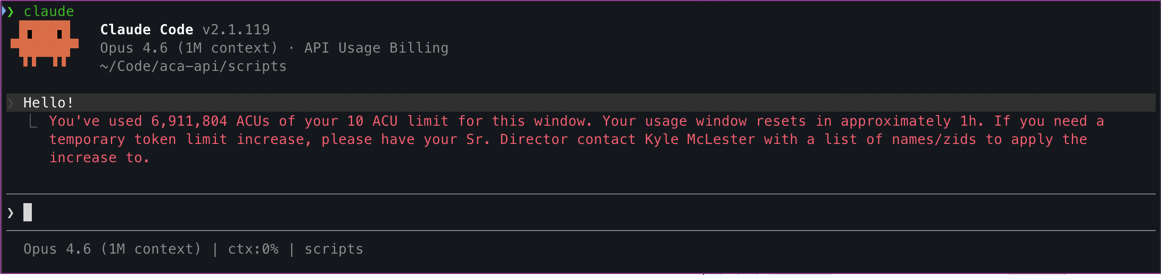
Each user has an ACU (Anthropic Compute Unit) limit per rolling window. Heavy usage — like large file processing or long sessions — can hit this ceiling. The window resets automatically, usually within an hour.
To request a temporary increase: Your Sr. Director can reset or raise your limit directly in the ACA Management Portal — fast, self-serve, no ticket needed! 🚀
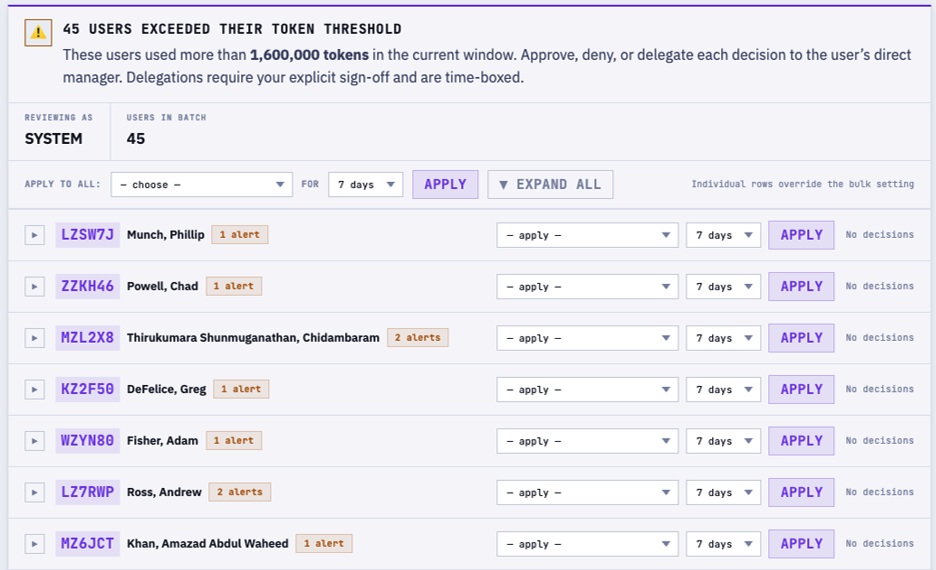
🕵 The Approvals Dashboard
Usage threshold alerts are reviewed by leadership. Sr. Directors can approve, deny, or delegate limit increases for their teams — all time-boxed and auditable.
Good news: Limits exist to ensure fair access across all teams — not to slow you down. If you genuinely need more, the process is easy and fast!
Usage Dashboard
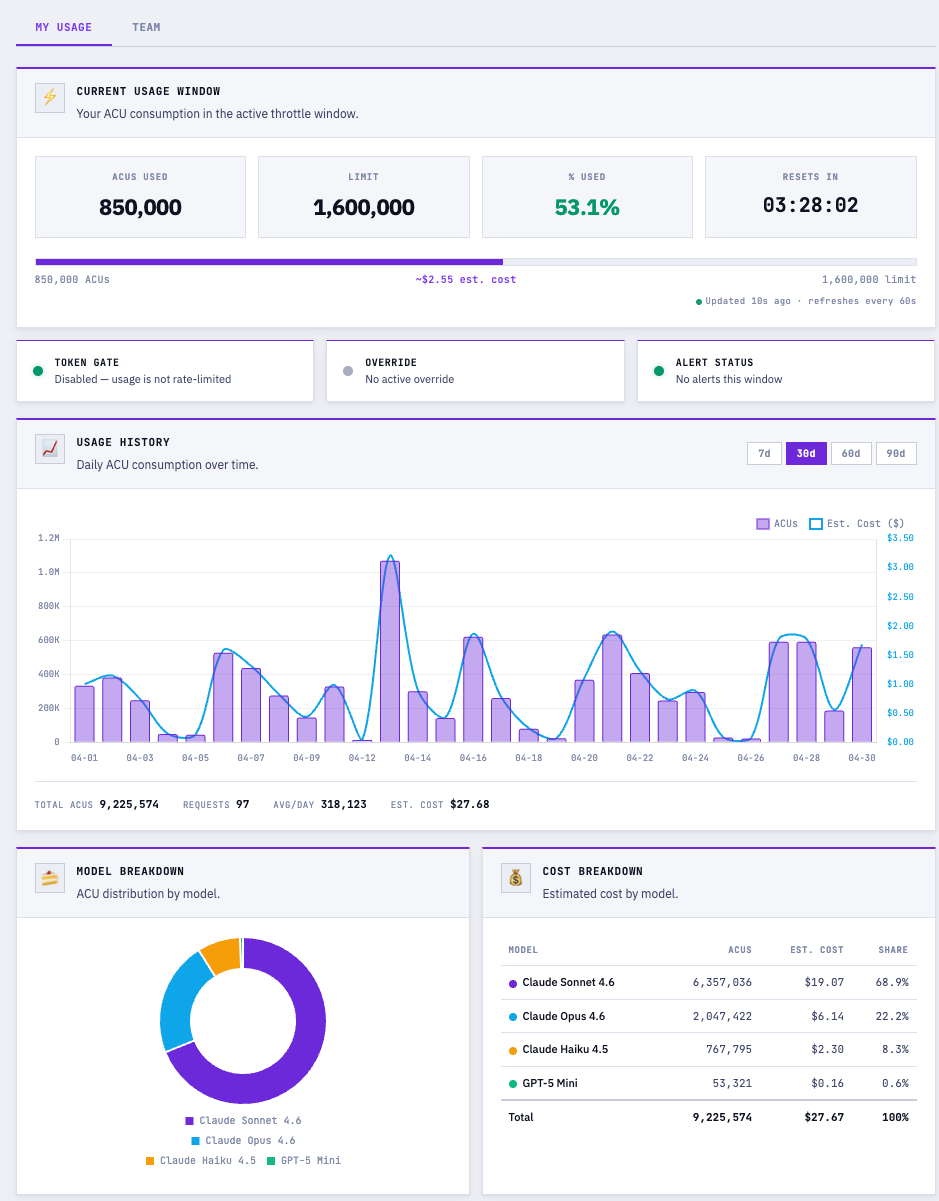
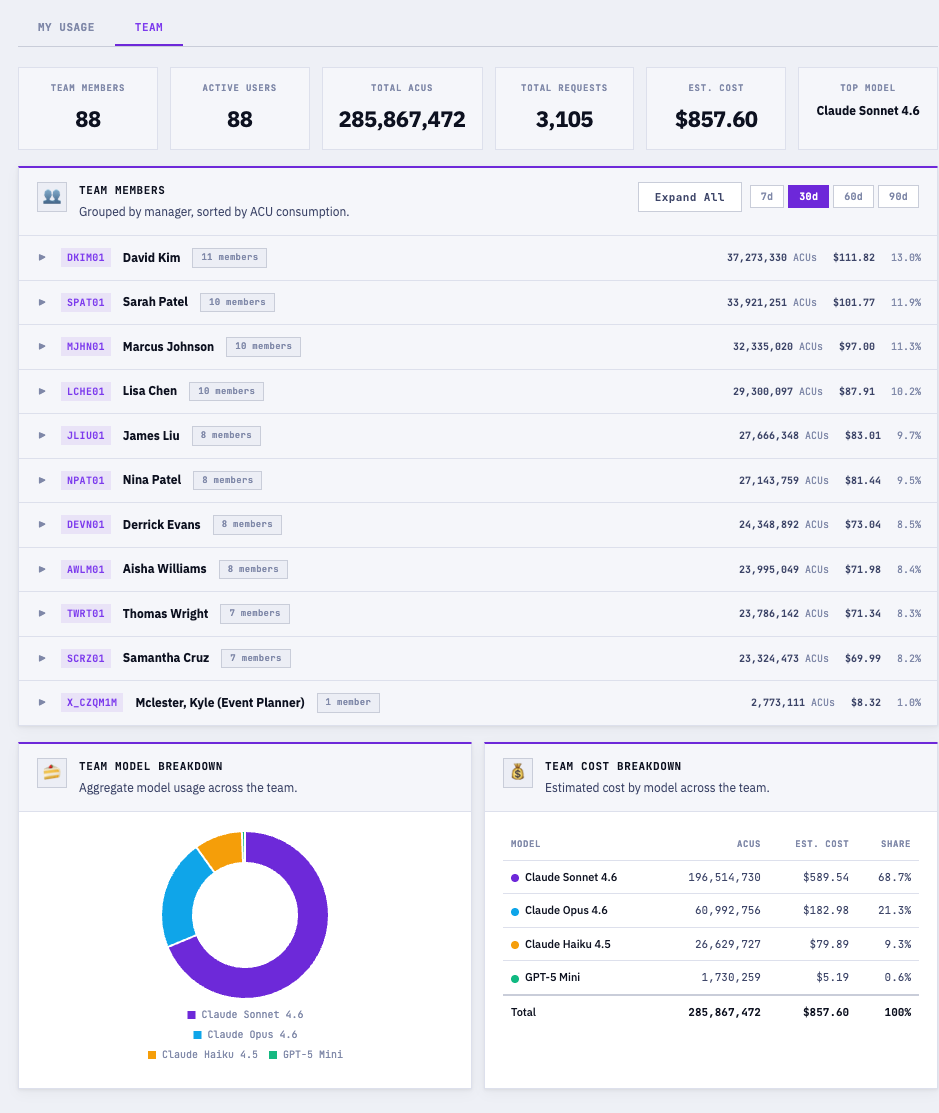
Rolling out to all users — see your own ACU consumption and your team's at a glance
📊 My Usage Tab
Real-time ACU balance, usage history (7–90 days), estimated cost, and per-model breakdown — all in one place.
👥 Team Tab
Leaders see consumption grouped by manager, total ACUs, request counts, and cost — always know where usage is concentrated.
Coming soon to everyone: The usage dashboard is actively rolling out. Once available, check it anytime to understand your own consumption and proactively manage your limits.
Not Enabled Yet? That's Totally OK!
The error you'll see if your enablement wave hasn't arrived — and exactly what to do next
🔮 What you might see
If Claude Code launches but a request comes back with API Error: 403 and UNAUTHORIZED_GROUP_ACCESS_ERROR, your account hasn't been added to an enablement wave yet. Nothing is broken — you're just a little early!
🎓 1. Finish your Workday training
Complete the Claude Code training in Workday if you haven't already. That's the gate that gets you added to an upcoming enablement wave — easy and self-paced!
🎉 2. Wait for the next wave
Enablement waves run twice a week, the week after your Claude Code enablement. Once your wave runs, access switches on automatically — no ticket, no manual steps.
✅ 3. Re-launch and go
After your wave completes, just restart Claude Code. The 403 disappears and you're in. Seeing this error means install worked and you're already talking to Ally's gateway — the last puzzle piece is the AD group sync.
You're on the list — hang tight! This error is a normal part of the rollout. Finish training, let the wave run, and we'll see you on the other side.
Claude Code in Practice
How This Presentation Was Actually Built
Step 1: Give Claude guidance
CLAUDE.md
Claude Code 101 — Introduction Course
An introduction course for Claude Code.
Tone & Mindset
• Always be upbeat, encouraging, and positive
• Use AI to enhance what people already do well
• Lower stress, never raise it
• Make everyone the hero
Dale Carnegie Persona
...
Step 2: Describe what you want
Build a Claude Code 101 presentation in
the style of Ally.com. Include sections
on context, planning, config, and
creative uses. Dark/light themes, cards,
and workflow diagrams.
Step 3: Iterate naturally
Claude builds the first draft. Then you refine it — just like talking to a colleague:
> "Change the title to Claude Code 101"
> "Add a diagram showing the architecture"
> "Make the goals a centered list"
> "The CLAUDE.md box is too big, shrink it"
> "Rewrite the async slide with animations"
Each prompt refines what's already there. You don't start over — you steer.
Guidance (CLAUDE.md) + Prompt (what you want) + Iteration (refine as you go) = this entire deck. No design tools. No templates. Just conversation.
ally
⚙️Section 4
Settings & Permissions
Your control panel — configure Claude to work the way you do
Presenter: Jackson Sykes
What is settings.json?
Your control panel for Claude Code — everything from permissions to environment variables
Right file, right scope — user, project, or local override
🏠 User Level
~/.claude/settings.json
Applies to every project on your machine. Your personal defaults.
// Personal defaults — applies to all your projects
{
  "defaultMode": "acceptEdits",
  "permissions": { "allow": ["Read", "Glob", "Grep"] },
  "env": { "AWS_REGION": "us-east-1" }
}
👥 Project Level
.claude/settings.json
Committed to git. Shared with your whole team. Use for team guardrails.
// Team rules — committed to the repo
{
  "permissions": {
    "allow": ["Bash(npm *)", "Bash(terraform fmt *)"],
    "deny":  ["Bash(rm -rf *)", "Bash(git push --force *)"]
  }
}
🔒 Local Overrides
.claude/settings.local.json
Gitignored. Your personal tweaks for this project only.
// Personal, local-only — never committed to the repo
{
  "permissions": { "allow": ["Bash(docker *)"] },
  "mcpServers": { "my-local-tool": { "..." } }
}
These three layers sit below Ally's managed settings layer, which cannot be overridden by any file you control. Deny always wins — any deny rule at any level blocks the action.
Permission Modes
Change how Claude approves actions — set defaultMode in settings.json
default— recommended starting point
Standard behavior: prompts for permission on first use of each tool. You see everything before it happens.
acceptEdits— great for active coding sessions
Auto-accepts file edits and common filesystem ops (mkdir, touch, mv, cp) in your working directory. Bash still prompts.
plan— read-only, safe exploration
Claude can analyze and explain but cannot modify files or run commands. Perfect for code review or exploring an unfamiliar repo.
bypassPermissionsDISABLED AT ALLY
Skips all permission prompts entirely. Intended only for isolated containers or VMs — never developer workstations.
🚫 Disabled in Ally's managed settings. Cannot be enabled by any user or project config.
// Set in any settings.json layer
{
  "defaultMode": "acceptEdits"
}
The Permission Prompt
Claude Code asks before it acts — every time it wants to touch your system
Claude Code — ~/my-project
Claude wants to run a bash command:
$ git push origin feature/my-branch
Do you want to allow this?
Yes, allow onceAllow for sessionAlways allowDeny
🔒 Why Does Claude Ask?
Every action that touches your filesystem, shell, or the internet triggers a prompt. You see exactly what Claude wants to do before it happens — always.
👁 What Triggers a Prompt?
Bash commands — any shell execution
File writes & edits — modifying your code
Web fetches — outbound HTTP calls
MCP tool calls — Jira, GitLab, Confluence, etc.
💡 Read-only operations (ls, cat, grep, git status, etc.) run without any prompt — they're built-in safe commands.
Use /permissions at any time to view and manage all your active allow & deny rules.
Your 4 Choices
Know exactly what you're agreeing to before you press a key
Yes, allow once
Allows this single action right now. Next time Claude wants to do the same thing, it asks again.
✅ Best for: one-off commands you're evaluating. No long-term commitment.
Allow for session
Allows this pattern until you close Claude Code. Remembered in memory, not written to disk.
✅ Best for: repetitive tasks within a working session (running tests, linting, builds).
Always allowwrites settings.json
Bash commands: writes to settings.json — persists permanently across all sessions.
File edits & writes: held in memory only — resets at session end, same as "for session."
✅ Best for: Bash commands you've verified safe. File edit approvals will re-prompt next session.
Deny
Blocks the action. Claude stops and reports it was denied. Nothing is written to disk.
✅ Best for: anything that looks wrong, risky, or unexpected.
💡 Tip — Tab to amend
Press Tab on Yes or No to add context. Instead of a bare "No," amend it to "No, use TypeScript instead of Python" — Claude adjusts on the spot.
💡 Tip — Ctrl+E to explain
Press Ctrl+E to see a detailed breakdown of what the command will do, plus a risk score (low, medium, high) so you can make an informed decision.
Allow & Deny Patterns
Match tools by name, or scope Bash with glob-style command filters
📄 Tool Name Patterns
Use the exact tool name to allow or deny it entirely:
"Read"// all file reads"Glob"// file pattern matching"Grep"// search in files"Write"// new file creation"Edit"// file edits / diffs"WebFetch"// outbound HTTP calls"WebSearch"// web search"Bash"// ALL bash (use carefully!)
🔧 Tool Filters
Scope Bash permissions to specific command patterns:
"Bash(npm *)"// npm install, test, run…"Bash(git status *)"// read-only git info"Bash(terraform fmt *)"// tf formatting only"Bash(ls *)"// ls only — NOT lsof"Bash(ls*)"// ls AND lsof (no boundary)
⚠ Space before * enforces a word boundary. Bash(ls *) matches ls -la but not lsof. Shell operators (&&, |, ;) split compound commands — each subcommand needs its own matching rule.
MCP tools (mcp__server__tool) and domain-scoped fetches:
"mcp__jira__*"// all Jira tools"mcp__gitlab__*"// all GitLab tools"mcp__jira__search_issues"// one specific tool"WebFetch(domain:ally.com)"// fetches to ally.com only"Agent(Explore)"// allow/deny a subagent
💡 Tip: Run /update-config to have Claude write or update your settings.json interactively.
Allowing WebFetch alone doesn't block curl in Bash — add a deny rule for Bash(curl *) if needed, or use sandbox mode for full network control.
Alert Fatigue
The real security risk isn't the prompt — it's ignoring it
🚨 What is alert fatigue?
When a system generates too many prompts, people stop reading them and click through on autopilot. Security systems don't fail because they're broken — they fail because they're ignored.
In Claude Code, this looks like: Claude asks to run npm install, you approve. It asks again. You approve. And again. By the 10th prompt, you're not reading. You just hit yes. That's the risk.
🎯 The Goal
Reduce noise on known-safe actions so you have full attention on the prompts that actually matter — the ones touching sensitive files, pushing code, or running infrastructure commands.
💡 Tips to Stay Safe Without the Noise
Pre-allow genuinely safe ops — Read, Glob, Grep, and read-only git commands. They can't cause harm. Stop prompting for them.
Use plan mode when exploring — zero action prompts by design. Great for code review or unfamiliar repos.
Use acceptEdits during active coding — file edits stop prompting, Bash still does.
Session-allow repetitive tasks — don't permanently approve something you've only seen once. Let it earn a permanent rule.
Explicitly deny the dangerous stuff — deny rules mean those actions never reach you as a prompt at all.
Run /fewer-permission-prompts — Claude tunes your config to your actual workflow so noise drops without you guessing.
What to Pre-Allow at Ally
A practical guide for setting up your personal settings.json
💡 Quick setup: Run /fewer-permission-prompts — Claude analyzes your transcript history and auto-suggests the right allow rules for your exact workflow.
ally
🧠Section 5
Understanding Context
Sessions, Tokens, and Working Memory
What Is a Token?
A token is roughly 4 characters of text — the unit Claude thinks in
c o d e
=
1 token
Here's a real sentence broken into tokens — every ~4 characters is one token:
Clau
1
de C
2
ode
3
is a
4
pow
5
erfu
6
l to
7
ol f
8
or y
9
ou!
10
"Claude Code is a powerful tool for you!" — ~10 tokens
Why It Matters
Everything Claude reads and writes costs tokens. The more tokens in your conversation, the more it costs — and the harder it is for Claude to remember early details.
Context Window = 200K Tokens
That's roughly 150,000 words or ~500 pages. Sounds huge — but code, file contents, and tool results add up fast.
The AI Models: Opus vs Sonnet vs Haiku
Different models for different jobs — like choosing the right tool from a toolbox
🧠
Opus 4.6
Most capable. Deep reasoning. Best for complex multi-step tasks.
1M context
⚡
Sonnet 4.6
Fast & capable. Great balance of speed and quality.
💡 Techniques multiply capability: A single model working alone is good. Multiple agents with expert personas blending outcomes — like asking a room full of experts instead of one engineer — is significantly better for complex tasks.
ally
💬Sessions
Session Management
Start, resume, rewind, and branch your work
Presenter: Blaise Moses
What Is a Session?
A session is your running conversation with Claude — it remembers everything until you clear it
▶️
Start
claude from your project root opens a new session with a fresh context window.
⚡
Work
Every message, tool call, and file read builds shared context. Claude saves everything to the session.
🔄
Resume
Sessions survive restarts. Pick up exactly where you left off with claude --continue.
⏮️
Recover
Rewind to any earlier point in a conversation with /rewind. Fix mistakes without restarting from scratch.
🌳
Parallelize
Fork a session with /branch to explore two approaches simultaneously. Compare results side-by-side.
🔒 Private & Local: Sessions are stored locally on your machine, not in the cloud. Your conversations are private to you.
Pro Tip: Even if Claude Code closes unexpectedly, your session is safe. claude --continue picks up from the last completed step.
Sessions are scoped by folder — each project keeps its own independent history. Let's see how that works →
Session Organization
Sessions are scoped to the folder you launch from — each project keeps its own independent history
📁~/payments-api
Fix auth token refresh bug20m
Add retry logic to processor
📁~/frontend-app
Update dashboard charts4h
Fix mobile nav menu
Each folder has its own sessions. Start Claude Code from your project root and your conversation history stays organized.
Advanced:Fork a session to explore two approaches in parallel, or rewind to any earlier point in a conversation.
Roll back to an earlier point in the conversation without restarting.
/branch
Fork the session to explore two approaches in parallel.
The Context Window
Claude's working memory is powerful — but it works best when we keep things focused
👧
The Kid with a To-Do List
1
"Clean your room"
Nailed it.
vs.
17
"Clean room, do laundry, feed dog, wash dishes..."
Things get missed.
👔
The Waiter Without a Notepad
2
orders memorized
Perfect every time.
vs.
17
orders from memory
"Who had the salmon?"
Can you do 17 tasks? Absolutely. But not all at once in your head.
The Good News
Claude is built to handle complex tasks. It has native techniques — planning mode, subagents, task lists — designed exactly for this.
The Key Insight
Big tasks need to be chunked into smaller pieces. A technique is required — and we'll teach you several.
Coming Up
/clear, planning mode, subagents, and task lists — all techniques for working within the window.
Subagents: Parallel Workers
Claude Code can spawn specialized subagents to work in parallel without bloating your context
When Claude Code faces a complex task, it launches subagents — independent workers that run in parallel, each with their own context window. Results come back as concise summaries, keeping your main context clean.
Why Subagents Matter
Parallel execution — multiple searches run simultaneously
Context protection — verbose results stay in the subagent, only summaries come back
Specialization — each type is optimized for its task
💡 Pro Tip
You can just ask Claude to use subagents. Say "use subagents to research this" or "explore these files in parallel."
Explore Agent
Deep codebase research — searches across files, patterns, and naming conventions
Plan Agent
Designs implementation strategies, identifies files and architectural tradeoffs
Bash Agent
Runs shell commands, git operations, builds, and tests in isolation
Key takeaway: Subagents are why Claude Code handles large tasks without hitting context limits — heavy lifting happens outside your main conversation.
The /clear Command
Reset conversation context and stay sharp
> /clear
What It Does
Wipes conversation history — Claude starts fresh with no memory of prior messages
Does NOT create a new session — you stay in the same process and directory
Old conversation is preserved — the cleared session is saved and can be resumed later with claude --resume
CLAUDE.md and memory files persist — project config is always reloaded
When to /clear
Switching tasks within the same project
After compaction has made context unreliable
Before executing a plan file (maximize available context)
Between unrelated changes — don't carry frontend context into backend work
When to Start a New Session Instead
Switching to a different project directory
Want a separate session ID for organizational purposes
Starting a completely unrelated task in a different repo
To start a truly new session: exit Claude Code (Ctrl+D) and run claude again.
/clear as Cost Control
Every token in your context window is re-sent to the API on every single turn
A bloated context means you're paying for old, irrelevant tokens with every message you send. Clearing between unrelated tasks keeps costs down and quality up.
💰 Real Example
You update website text (HTML/CSS context), then need to change a backend function (Python context). Without /clear, every backend message carries the full HTML conversation — you're paying for irrelevant tokens and getting worse results.
Task 1: Update website text
⬇
/clear
Context reset — stop paying for HTML tokens
⬇
Task 2: Change backend function
Rule of thumb: If the next task doesn't need anything from the current conversation, /clear first.
ally
🛠Section 6
Planning Mode
Think First, Build Second
Planning Mode & plan.md
Separate research from implementation for complex tasks
1
Enter Planning Mode
Claude explores your codebase, reads files, and researches the problem without making changes
→
2
Generate plan.md
A detailed implementation plan is written to a file with specific steps and approach
→
3
/clear Context
Clear the conversation to free up the full context window for execution
→
4
Execute the Plan
Reference the plan.md — Claude follows it step-by-step with maximum context available
Why This Works
The plan persists as a file on disk, surviving context clears and compaction. Claude gets maximum context to execute each step precisely.
Execute in Steps
Plans can be executed one step at a time, using /clear between steps. Each step gets a fresh context window — so a 10-step plan effectively gets 10x the context.
When to Plan
Multi-file changes (3+ files)
Architectural decisions
Unfamiliar codebases
Unclear requirements
About .md files: Claude generates plans, docs, and reports as Markdown (.md) files — lightweight text that renders beautifully in GitLab and Confluence. Ask Claude to convert them to Word, PDF, or HTML anytime.
ally
💬Section 7
The Prompt Is Your Interface
It's where everything you just learned starts
Presenter: Trevor Lewis
It's Not Google. Brief It, Don't Ask It.
The difference isn't length — it's that one briefing gives the tool what it needs
Naive prompt
“Read this requirements doc and break it up into work.”
Briefing-style prompt
“Attached is our Q3 product requirements doc. I need to break the work into epics and stories for sprint planning. The team has four engineers (two senior, two mid-level), one designer at 50% allocation, and a delivery deadline of November 15th. Please produce: (1) 3–5 epics with brief descriptions, (2) for each epic, 4–8 stories sized for one sprint or less, (3) flag any requirements you think are at risk given the team composition and timeline.”
Key insight: Google rewards keywords. Claude rewards context.
What Makes the Briefing Work
Three things — none of them are magic words
Attached is our Q3 product requirements doc. I need to break the work into epics and stories for sprint planning. The team has four engineers (two senior, two mid-level), one designer at 50% allocation, and a delivery deadline of November 15th. Please produce: (1) 3–5 epics with brief descriptions, (2) for each epic, 4–8 stories sized for one sprint or less, (3) flag any requirements you think are at risk given the team composition and timeline.
Inputs
What the model needs to know — the document, team composition, allocation details
Constraints
What's fixed — the deadline, team size, things that can't be assumed away
Output Shape
What you want back — specific format, not just “sprint planning”
The whole skill: What does it need to know? What's fixed? What do I want back?
Three Starting Points — Each One Is a Briefing
Pick one, try it Monday — the briefing structure works for all of them
Help me think through [a decision].
Inputs:the situation, what you've already considered
Constraints:what's fixed, what you can't change
Output:options with tradeoffs
Summarize [document] for [audience].
Inputs:the document, who's reading it
Constraints:how long, what they need to know
Output:the format you need
Review my [draft] and tell me what's missing.
Inputs:the draft, your goal for it
Constraints:who it's for, what kind of feedback helps
Output:structured critique
Inputs. Constraints. Output shape. — You already know how to communicate this way. The tool is new; the skill isn't.
Before You Sit Down to Do Real Work
Take a task you already know well — and try it three ways
1. A naive prompt
The way you'd type into Google. See what comes back.
2. A briefing
Inputs, constraints, output shape. See what comes back.
3. Something in between
Find where the difference actually lives.
Look closely at what comes back. Iterate. Refine the prompt, not just the response.
Remember the fundamentals
Inputs
What it needs to know.
Constraints
What's fixed.
Output shape
What you want back.
You don't walk up to a colleague and say “do thing, here.” You give them context. You tell them what's fixed. You tell them what you want back. You already know how to communicate this way.
ally
⚙Section 8
Configuration Files
CLAUDE.md, Memory, and Rules
Configuration Files
Persistent instructions that Claude reads every time it starts
📁 Project📁 ~/dev/payments-api — shared via repo
CLAUDE.md
Location: Project root
Coding standards, conventions, architecture rules, build commands. Committed to git — everyone on the project gets the same instructions.
MEMORY.md
Location:~/.claude/projects/*/memory/
Claude auto-saves learned patterns and decisions per project. Survives across sessions. Local to your machine.
👤 User / MachinePersonal to you, applies everywhere
~/.claude/CLAUDE.md
Location: Home directory
Personal preferences, team conventions, org-wide standards. Applied to every project you open with Claude Code.
rules/*.md
Location:~/.claude/rules/
Enforceable constraints like "always use Ally modules" or "require all tfvars variables". Always loaded, always enforced.
Key Insight: All config files are loaded into context at the start of every conversation — they count toward your token budget. Keep them concise. Use rules/*.md for detailed constraints so CLAUDE.md stays lean.